How to Test a Backup Camera Before and After Install
To test a backup camera, power it with compatible equipment, check for a clear image, then confirm the installed camera turns on and shows the right view in reverse. Keep the vehicle secured and follow the camera and vehicle instructions.
On this page (7 sections)
- How do you test a backup camera before installation?
- How do you test the camera after installation?
- What does a blank or flickering image mean?
- How can you test a wired system with a long cable?
- What should you do if the image is reversed or upside down?
- How do you test a backup camera safely?
- What should a backup camera test confirm before you finish?
To test a backup camera, check that it powers on, sends a clear image to a compatible display, and shows the intended rear view after installation. Secure the vehicle before testing, and follow the camera and vehicle instructions for wiring, power, and gear selection.
Before installation, a compatible bench test can help identify a faulty camera or screen before you route cables. After installation, check the full system, including the trigger signal, camera angle, image orientation, and display behavior.
How do you test a backup camera before installation?
Connect the camera to its matching monitor and a suitable power source, then check for a stable image. Use the manufacturer's wiring diagram and confirm the parts are compatible before connecting anything.
Start with the connectors and power requirements. Some cameras use RCA video plugs, while others use multi-pin connectors; a plug that looks close may not be compatible.
Don't connect an unknown wire to vehicle power based on color alone.
Set the camera and monitor on a dry, stable surface. Keep the setup away from moving parts, moisture, and anything that could short a connection.
If the image appears, check that the display stays on and shows the camera view without flickering or cutting out when the cable is moved gently. Don't pull on the wires or disconnect a powered system unless its instructions say that is safe.
A bench test checks only the parts and connections included in that setup. It doesn't confirm that the camera will switch on with reverse gear or that its final position will show the area you need.
What should you check on the monitor?
Confirm the monitor can show the camera's video format and turns on as expected. A powered monitor with a blank screen may have a video connection problem or a mismatch between the display and camera.
Some systems support more than one signal type or camera input. For example, the ATPTK 7-Inch Wired AHD Backup Camera System supports PAL, NTSC, or AUTO modes and up to 2 cameras, according to its product details.
Use the system's own menu and instructions to change input or signal settings. Don't assume that a blank picture means the camera itself has failed.
How do you test the camera after installation?
With the vehicle secured, check that the installed camera turns on when expected and shows the rear area clearly. Have a helper watch the display while you operate the vehicle only as directed by its manual.
Park on level ground, apply the parking brake, and keep people clear of the vehicle's path. Follow the vehicle's instructions for activating reverse; don't rely on the camera as a substitute for mirrors, a direct check, or a spotter.
Check these items in order:
- The monitor powers on when the system should be active.
- The camera image appears without flickering or a blank screen.
- The image is upright and oriented as intended.
- The camera shows the area behind the vehicle that you expect.
- The monitor returns to its prior mode or turns off as intended after leaving reverse.
If the system is set to turn on with reverse, confirm that the reverse trigger activates the display. Wiring methods vary, so use the camera and vehicle instructions.
Our guide to hooking a backup camera to reverse lights explains the role of the reverse-light trigger.
How do you check the view and guide lines?
Check the camera image from the driver's normal viewing position, then adjust the camera angle before tightening its mount. The view should help you judge the space behind the vehicle without hiding nearby obstacles.
Look for a level horizon and a view that includes the ground near the rear of the vehicle. The camera's mount and lens affect what appears on screen, so test the view after each small adjustment.
Guide lines can help with distance judgment, but don't treat them as a measurement of exact clearance. If the system allows you to change or switch off its grid lines, set them only after the camera angle is final.
For mounting advice, see how to mount a backup camera so it sees the right spot. Recheck the image after tightening the mount, since the camera can shift while you secure it.
What does a blank or flickering image mean?
A blank or unstable image can come from a loose power connection, a loose video connection, an inactive trigger, or incompatible components. Check one connection at a time instead of replacing parts without narrowing down the cause.
Turn the system off before inspecting connectors, unless its instructions require power for a specific check. Look for plugs that are not fully seated, damaged cable sections, pinched wires, or corrosion at exposed connections.
If the monitor powers on but shows no picture, check the selected video input and signal settings. If the monitor never turns on, check its power source and the trigger circuit as instructed.
If the image cuts in and out, inspect the cable route for tight bends or places where the cable could be crushed. A long cable run may need a suitable extension; verify connector type and signal compatibility before adding one.
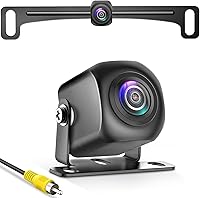
The EWAY cable is intended for RCA connections. It won't replace a system cable with a different connector, such as an aviation-style multi-pin plug.
If the display still has no image, isolate components when possible: test the camera with a compatible monitor, then check the monitor with a known compatible camera or signal source. For more fault checks, read why a backup camera may not be working.
How can you test a wired system with a long cable?
Test a wired system with its full cable run connected before securing or hiding the cable. This can reveal a loose connector or damaged section while the wiring is still accessible.
Route the cable away from sharp edges, hot parts, moving parts, and places where doors or panels can crush it. Keep enough slack for normal movement without leaving loops where they can snag.
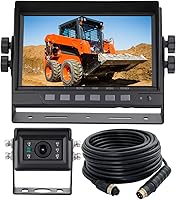
The Yakry 7-Inch Plug and Play Wired RV Backup Camera uses a 66 ft cable to connect the camera to its monitor. Its system connects the monitor to a power supply, such as a cigarette lighter adapter, ACC, or fuse, according to its instructions.
Test the camera from the final mount location and the monitor from its intended position. A clear bench image doesn't confirm that the installed cable path is free from damage or interference.
What should you do if the image is reversed or upside down?
Use the camera or monitor's image settings if the view is mirrored or upside down. Confirm the display matches the way you expect to judge left, right, and distance before relying on it.
Some systems provide image flip, mirror, or rotation settings. Check the instructions before changing them, since reversing an image can be intentional for a rear view.
After a setting change, ask a helper to stand well clear of the vehicle and hold an object in a safe, open area behind it. Compare the object's location with what appears on screen, without moving the vehicle toward it.
How do you test a backup camera safely?
Keep the vehicle parked and secured while checking the display, and use a helper for any test that requires the vehicle to be in reverse. Don't stand behind a vehicle that could move.
Use the parking brake and follow the vehicle manual's instructions for gear selection. If the engine must run to activate a circuit, keep the test brief and avoid enclosed spaces.
A camera is an aid for viewing. Keep checking mirrors, look around the vehicle, and use a spotter when visibility or the vehicle's size makes backing difficult.
What should a backup camera test confirm before you finish?
A complete test confirms the camera and monitor work together, the display activates when intended, and the installed view is clear and correctly oriented. Repeat the check after securing the mount and finishing the cable routing.
For a car, truck, or RV system, choose a matched camera and monitor when you want to test both parts together. Choose a compatible RCA extension only when the existing system uses RCA connections and needs more cable length.
If the camera view still doesn't appear, check the wiring and signal settings before changing parts. Use the camera setup and fixes guide for related installation checks and troubleshooting steps.
Frequently asked questions
Can you test a backup camera before installing it?
Yes, if you can connect the camera to its matching monitor and a suitable power source using the maker's instructions. Check the connector type, voltage, and video format first.
A camera that powers up on a compatible bench setup still needs a separate test after installation.
How do you test a backup camera with a multimeter?
Use a multimeter only if you know which circuit and terminals the vehicle or camera instructions identify. Check for the specified supply voltage at the camera or monitor connection, with the vehicle secured and the circuit active as directed.
Don't probe unknown wires or pierce insulation.
Why does a backup camera have power but no picture?
Power alone doesn't confirm a video connection. Check that the camera and monitor use compatible signal formats and connectors, then inspect the video cable and plugs for a loose or damaged connection.
If the screen stays blank, isolate the camera, cable, and monitor one at a time.
Should a backup camera stay on all the time?
That depends on the system and how it is wired. Some systems turn on when the reverse signal reaches a trigger input, while others support a continuous viewing mode.
Follow the camera and vehicle instructions, and confirm that the monitor behaves as intended after shifting out of reverse.